
Personal media collections · 06 / A shared Mac
Keep Photos and Videos Private on a Shared Mac
Choose between hiding from everyday browsing and encrypting files that need their own password.
By LumenPod · Updated November 6, 2026 · Direct-download edition
Choose what you are protecting
You hand a family member your Mac, or open your media library while working beside someone. Some photos and videos belong in your everyday view. Others do not. The right protection depends on what the other person can do.
| Situation | What helps | What it does not do |
|---|---|---|
| Someone can glance at your library | Hide selected items or switch to a different library | Hiding in an app does not encrypt files in Finder. |
| Someone uses your signed-in Mac and opens files | Encrypt selected files with a separate vault password | Readable originals and older copies still need attention. |
| Different people regularly use the same Mac | Separate macOS accounts and a locked screen | A private vault is not a replacement for account isolation. |
LumenPod is a local photo, video and audio library for Apple Silicon Macs running macOS 14 or later. The direct-download edition catalogs existing folders without moving the originals on import. Encryption is a separate action for the files you choose.
Photos Hidden album or separate accounts
If everything you want to hide is already in Photos, start with its built-in Hidden album. On macOS Ventura and later it is locked by default, using Touch ID or your Mac login password. See Apple's Hidden album instructions (checked November 6, 2026).
A separate macOS account is a good choice when someone else regularly uses the computer. Switch users rather than sharing an unlocked session. It does add a user-switching step when you want to return to your work.
A LumenPod vault serves a different workflow: media already in Finder folders, selected files with a password separate from your Mac login, and a library that remains useful for browsing and playback. You do not need to import the whole collection into Photos first. It is an additional option, not a reason to disable your Mac's existing protections.
Protect a few files first
Start with non-sensitive sample files and a backup. The direct download includes a 14-day full-feature trial with no account or card required.
- Use Import Media to add a small folder. Importing alone does not encrypt it.
- Open a vault in Settings → Encryption, using a strong password saved in your password manager.
- Select a sample item and choose Encrypt. Review the Original file option: retaining an unencrypted original leaves a readable copy outside the vault.
- Open the protected item. For a video, try playback and seeking before applying the same workflow to more files.
- Lock the vault when you finish. Check the library view, then check Finder for any readable originals you retained.
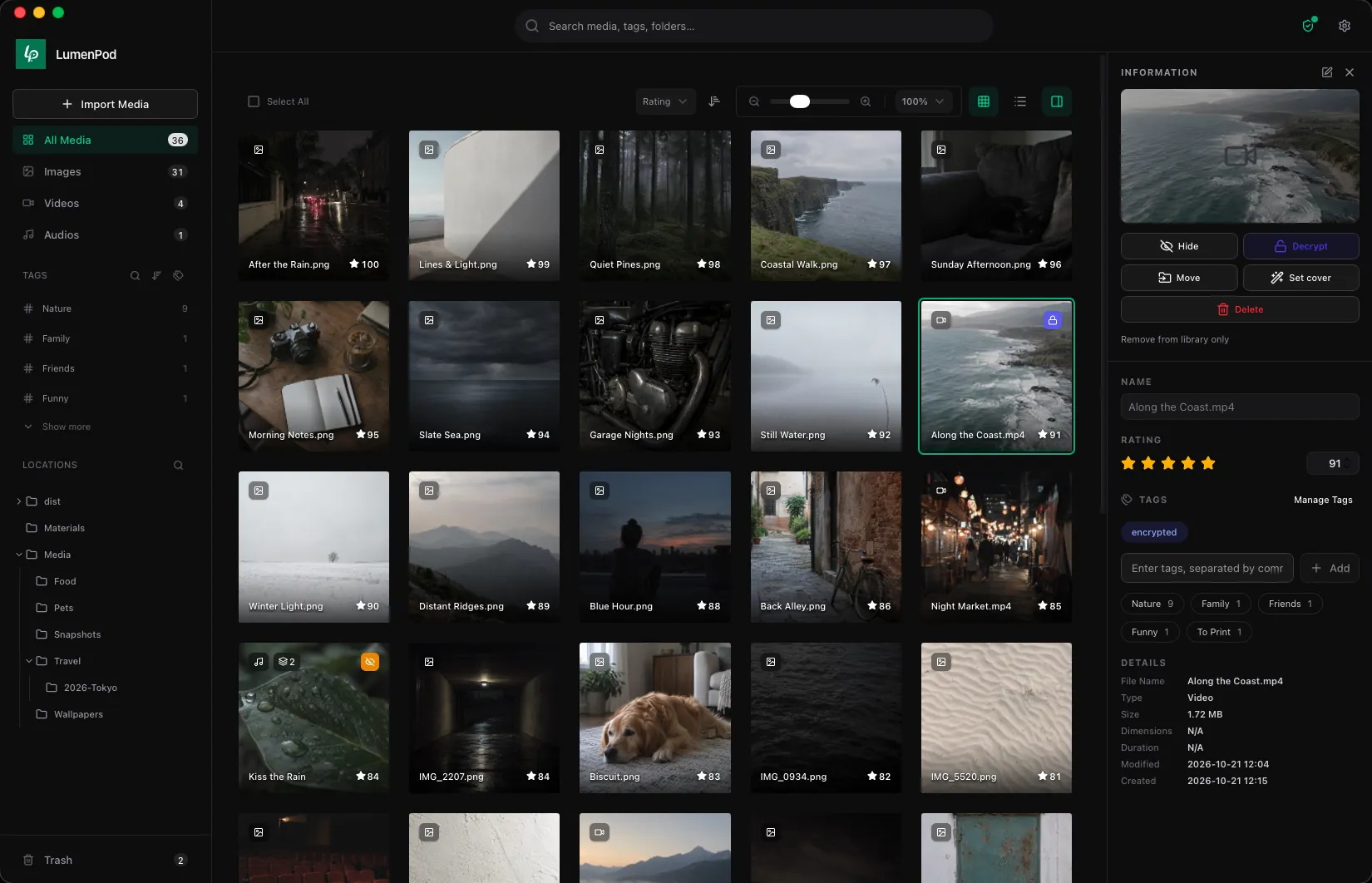
Each vault password opens its own space. The opening dialog does not present a list of other vaults. A mistyped password can open a new, empty space, so check the password if expected items are missing. This describes the app interface; it is not a promise that inspection of the disk cannot reveal protected data.
Check what remains outside the vault
Hiding in LumenPod does not stop Finder, Spotlight or Quick Look from reading an unencrypted original they can access. Encryption protects the encrypted copy. It does not retroactively remove thumbnails, exports, cloud copies or backup snapshots created elsewhere.
Review Downloads, Photos, messages and backup disks for other copies. Removing an original is not a guarantee of secure erasure. Keep verified backups of the media and separate recovery data and its key.
Shared Mac questions
Can I hide videos without using Photos?
Yes. LumenPod can change which cataloged items appear in its usual view. Use encryption when the file contents also need protection outside the app; hiding alone does not provide it.
Is this a screen-sharing privacy tool?
No. It does not mask windows or other applications. Close private content before sharing your screen, and check what is actually visible.
Can I still watch a protected video?
Open the right vault and play a supported video inside LumenPod. See the encrypted playback workflow, including format and original-copy limits.
What happens when the trial ends?
You can keep adding, organizing, viewing, playing, exporting and decrypting media, and existing vaults can be unlocked. Hiding, encryption, multiple libraries and other paid features require a license. Check the current license terms for the full scope.